
When resetting your smart appliances, understand that a network reset clears Wi-Fi and Bluetooth settings without deleting your data, while a factory reset restores the device to its original state, erasing all information. Use a network reset if you experience connection issues or after network changes, and opt for a factory reset for more serious problems or before selling the device. To learn detailed steps and tips, continue exploring how these resets can keep your smart home running smoothly.
Key Takeaways
- Use network resets to clear Wi-Fi and Bluetooth settings without deleting personal data.
- Factory resets restore devices to original settings, erasing all data and custom configurations.
- Follow specific reset procedures via physical buttons, apps, or control panels for accurate results.
- Power cycling can temporarily fix issues before performing full resets.
- Reconfigure devices after resets by reconnecting Wi-Fi, updating firmware, and restoring settings.
Understanding the Difference Between Network and Factory Resets
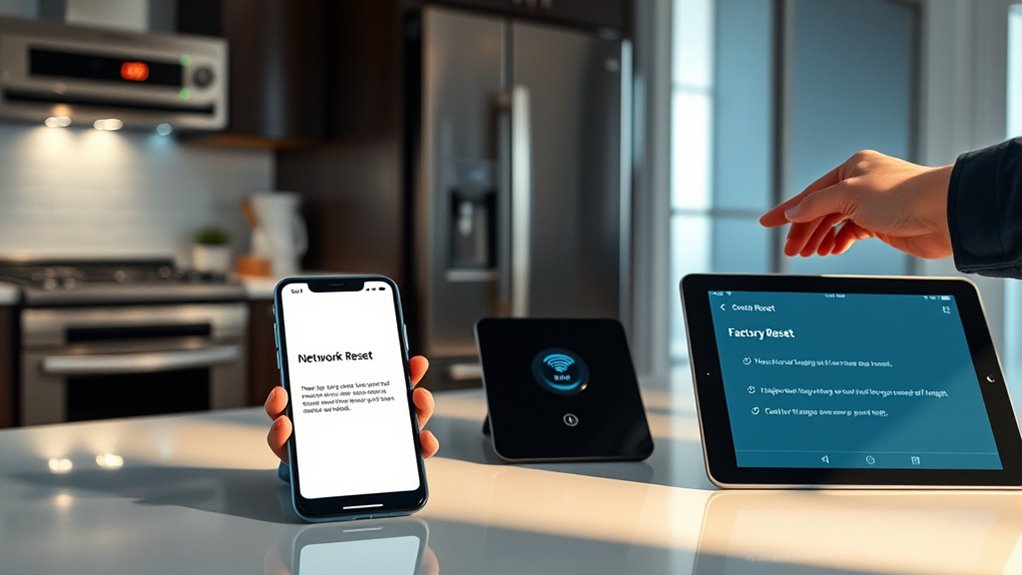
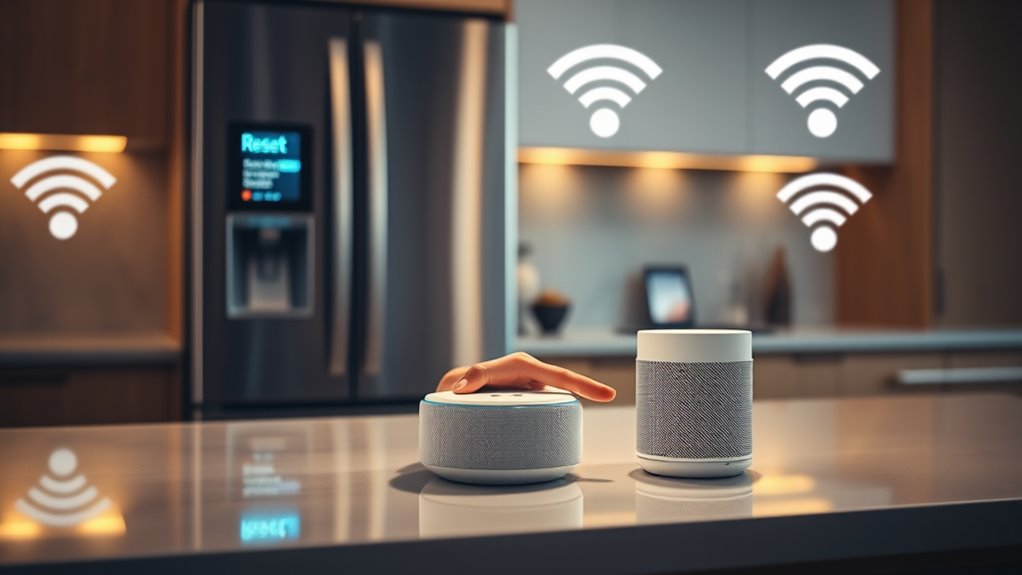
Understanding the difference between network and factory resets is essential when troubleshooting your smart appliances. A network reset removes stored network settings like Wi-Fi and Bluetooth connections, without deleting files or data. This process is useful when your device struggles to connect after updates, as it resets network adapters and configurations, requiring you to reconnect manually. In contrast, a factory reset restores the device to its original state, erasing all data and settings, including network connections. You’d perform a factory reset if you’re selling the device, or if troubleshooting steps fail. While network resets are less invasive and preserve your files, factory resets are more all-encompassing but require reconfiguring everything afterward. Knowing these distinctions helps you choose the right reset for your smart appliance. Understanding these distinctions ensures you select the most appropriate reset method for your specific situation. Additionally, being aware of potential security vulnerabilities can help prevent unauthorized access after resets.
A clear understanding of reset procedures can also help you avoid accidental data loss or security issues.
When and Why to Perform a Network Reset
Knowing when to perform a network reset can save you time and frustration when your smart appliances encounter connectivity problems. You should consider a reset if your device frequently disconnects, responds slowly to app commands, or firmware updates aren’t applying properly. Resetting can also address privacy concerns by clearing stored data. Additionally, after router reboots or network changes, a reset helps reconnect appliances smoothly. Here’s a quick overview:
| Scenario | Purpose of Reset |
|---|---|
| Inconsistent Connection | Restore stable connectivity |
| Firmware or Software Updates | Ensure proper application and compatibility |
| Network Configuration Changes | Adapt to new network settings |
| Device Removal or Conflict | Secure device and fix IP conflicts |
Perform resets proactively to maintain security, performance, and network stability, which is essential for the proper functioning of your smart appliances.
Step-by-Step Guide to Resetting Common Smart Appliances
Resetting your smart appliances can resolve connectivity issues, improve performance, and guarantee they function correctly with your network. To do it efficiently, follow these steps:
Resetting your smart appliances fixes connectivity, boosts performance, and ensures proper network function.
- Identify the reset method: Check if your device uses a physical reset button, app, or control panel. Understanding device architectures can help you choose the correct reset approach.
- Perform the reset: For hubs, unplug, hold the reset button, then reconnect power; for plugs, unplug and hold the reset button until the LED flashes; for ovens, navigate to reset options in the menu or app.
- Confirm reset completion: Watch for LED changes, screen prompts, or app notifications indicating the reset is successful. Properly executing the reset ensures your device resets correctly and avoids potential issues.
- Understand the importance of proper reset procedures: Reset protocols ensure your device resets correctly and avoids potential issues.
Always refer to your device’s manual for specific instructions, but these general steps will help you reset most common smart appliances effectively.
Power Cycling as a Precursor to Reset Procedures

Power cycling is often the first step when troubleshooting smart appliances because it’s a quick and safe way to fix minor issues without risking data loss or complex reconfigurations. It helps determine if the problem is software or hardware-related, and can temporarily restore network settings, resolving connectivity hiccups. Restarting also cools down components, reducing overheating risks, and preserves smart features and energy-saving settings. Power cycling maintains smart home integration and usually keeps devices connected, though some might need manual reconnection afterward. It’s an excellent diagnostic tool for identifying power, network, or hardware issues and can reveal if a full reset is necessary. Since it’s non-permanent, quick, and less disruptive than a factory reset, power cycling is an ideal first step before more extensive troubleshooting. Additionally, understanding Gold IRA Rollovers can be beneficial for diversifying your retirement portfolio as part of your overall financial strategy. Recognizing how automation technologies are integrated into smart devices can also help you troubleshoot more effectively and ensure seamless operation.
Reconfiguring Devices After a Reset: Firmware and App Updates

After a device reset, reconfiguring your smart appliance involves updating its firmware and app to guarantee ideal performance and security. To do this effectively, follow these steps:
- Identify your device model and visit the manufacturer’s support page to find the latest compatible firmware.
- Back up critical data to prevent loss during updates, and ensure your device is connected to a stable power source.
- Reconnect the appliance to WiFi and check for app notifications about available updates. Use the app to download and install firmware updates remotely, which often include bug fixes and new features.
- Ensuring your device’s software is up to date helps prevent software-related issues and prolongs its lifespan software updates.
Following these steps helps maintain your device’s longevity, optimize functionality, and prevent software-related issues. Always verify update success by checking the system information or settings after installation.
Troubleshooting Connectivity Issues With Reset Techniques
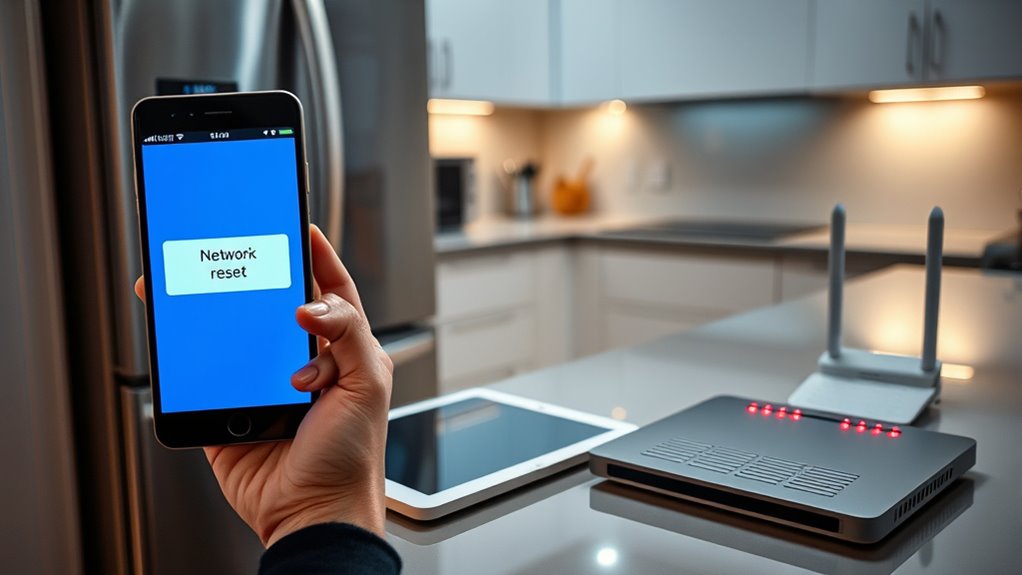
When troubleshooting connectivity issues with your smart appliance, start by verifying that the device is properly plugged in and powered on to rule out basic power problems. Next, check the Wi-Fi network status; ensure the appliance is connected to the correct network and that your router is functioning correctly. Restart the router and unplug/replug the appliance to refresh connections and fix minor glitches. If the signal is weak, move the device closer to the router or use a Wi-Fi extender. Performing a network reset by following manufacturer instructions can help re-establish connections. If issues persist, consider a factory reset, but only after trying network resets. Remember to update firmware and app versions post-reset for the best results. For optimal performance, some devices benefit from Self Watering Plant Pots to ensure consistent moisture, which can also contribute to overall device health. Regularly monitoring device performance can help identify issues early and prevent connectivity problems before they become severe. Basic troubleshooting can often resolve most connectivity problems.
Frequently Asked Questions
How Often Should I Perform a Network Reset on My Smart Appliance?
You should perform a network reset only when you experience specific issues like frequent disconnects, connection failures, or error codes such as 5014 or 4623. Don’t reset routinely; do so only when troubleshooting. Interference from other devices, network changes, or firmware updates may require resets. Keep your firmware updated and troubleshoot Wi-Fi interference proactively to minimize resets. Resetting too often can cause more problems than it solves.
Can I Reset My Device Remotely Without Physical Access?
Like a wizard waving a wand from afar, you might wonder if you can remotely reset your device without touching it. Most smart appliances don’t allow full factory resets remotely due to security risks, but some enable software-based resets via apps or cloud platforms. You need the device to be online, connected, and supported by remote commands. Otherwise, physical access remains essential for complete resets, keeping your device safe from unauthorized control.
What Should I Do if Reset Indicators Don’T Activate Properly?
If reset indicators don’t activate properly, first check that all physical controls and buttons are working correctly. Make certain your appliance has a stable power supply, and try updating its software if available. If the indicators still don’t respond, contact the manufacturer’s support line for guidance. Sometimes, professional repair might be necessary if the indicators remain unresponsive, so don’t hesitate to seek expert assistance to avoid further issues.
Are There Risks of Losing Data During Factory Reset?
Yes, there’s a risk of losing data during a factory reset. When you reset your device, all your user data and apps are permanently deleted, and if you haven’t backed up beforehand, you’ll lose important information forever. Plus, residual data might still be recoverable, posing privacy risks. To minimize this, always create a complete backup and use secure erasure tools before resetting, especially if you plan to dispose of or sell the device.
How Do I Verify if My Device Successfully Reset?
You verify a successful reset by checking the device’s display or management console for a confirmation message. Look for default login credentials or setup prompts, and see if previous custom settings or data are gone. Reboot the device, then attempt to access it with default credentials. If you encounter initial setup screens and previous data is absent, your reset was successful. Additionally, system logs or network settings reverting to defaults confirm the reset.
Conclusion
Did you know that nearly 40% of smart appliance issues are resolved with just a simple reset? Knowing when and how to perform network or factory resets can save you time and frustration. Whether you’re reconfiguring devices or troubleshooting connectivity, understanding these procedures empowers you to keep your smart home running smoothly. Keep this guide handy—resetting your appliances is easier than you think and can often solve problems instantly.