If your Roborock Q7 M5+ robot vacuum isn’t connecting to WiFi, it can disrupt your cleaning routine and cause frustration. This guide walks you through the common causes of WiFi connection problems and provides safe, practical steps to resolve them. Whether it’s network issues or device settings, you’ll find clear instructions to get your robot back online quickly.
Before diving into solutions, make sure your WiFi network is working properly and your device is within range. A stable internet connection is essential for app control and firmware updates, so addressing connectivity issues promptly keeps your robot vacuum functioning optimally.
Key Takeaways
| Connectivity Checks | Ensure your WiFi network is active and the robot is within range. |
| Network Settings | Verify WiFi password and network compatibility. |
| Device Reset | Reboot your Roborock and router to refresh connections. |
| App & Firmware Updates | Update the Roborock app and device firmware for stability. |

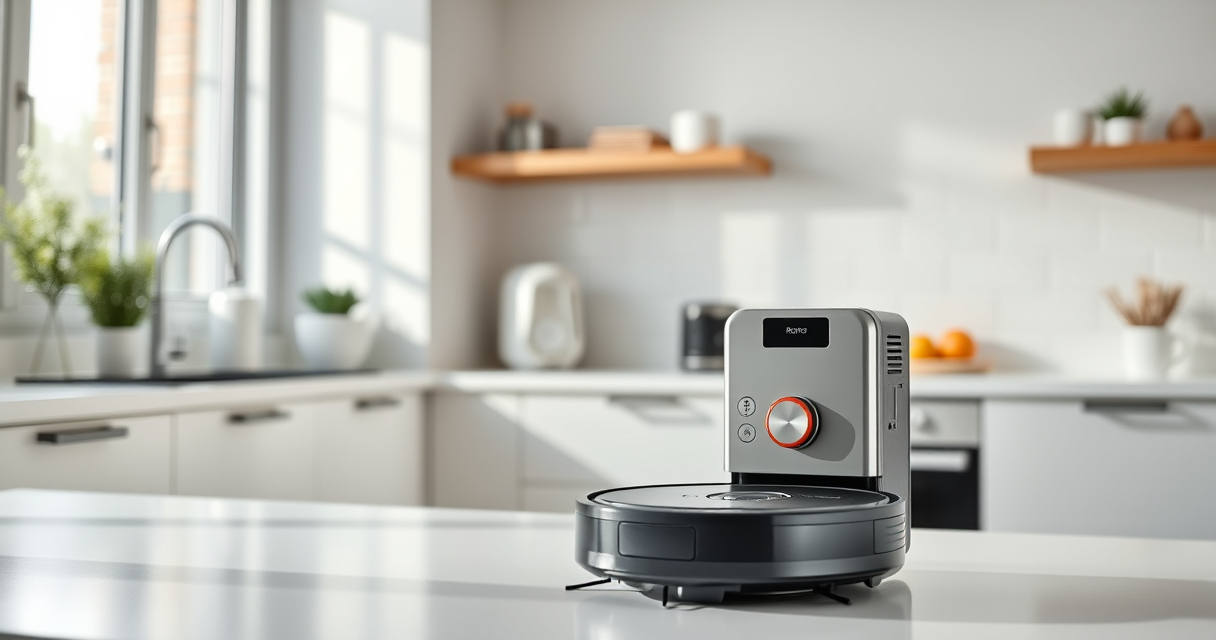
roborock Q7 M5+ Robot Vacuum and Mop, Up to 7-9 Weeks Self-Empty, 10000Pa
- Long-lasting Self-Emptying: Up to 7-9 weeks with 2.7L dust bag
- Powerful Suction: 10000Pa for deep cleaning
- Anti-Tangle System: Dual design resists pet hair wrap
As an affiliate, we earn on qualifying purchases.
Step 1: Confirm Your WiFi Network is Working
- Check if other devices can connect to your WiFi network to rule out internet issues.
- Ensure your WiFi router is powered on and functioning properly.
- If your internet is down, restart your router and wait for it to reconnect.
Step 2: Check Robot’s Connection Range and Settings
- Make sure your Roborock Q7 M5+ is within 10 meters (33 feet) of your WiFi router.
- Verify that your WiFi network is 2.4 GHz, as many robot vacuums do not support 5 GHz networks.
- Ensure your WiFi password has been entered correctly in the app.
Step 3: Restart Devices and Reconnect
- Power off your Roborock vacuum and unplug your router for 30 seconds.
- Turn your robot back on, open the Roborock app, and try reconnecting.
- If needed, remove the device from the app and add it again following setup instructions.
Step 4: Update Firmware and App
- Open the Roborock app and check for firmware updates for your Q7 M5+.
- Update the app to the latest version from your app store.
- Follow prompts to complete any updates, then attempt WiFi connection again.
Tips & Warnings for Reliable Connection
- Keep your WiFi router in an open area away from obstructions and interference.
- Avoid using hidden or guest networks that may have restricted access.
- Do not use WiFi extenders or mesh networks that could cause signal instability.
- Always ensure your robot’s firmware and app are up to date for optimal performance.
The Products in This Guide

roborock Q7 M5+ Robot Vacuum and Mop
- ✔ App Control: Yes
- ✔ Dust Capacity: 2.7L
- ✔ Navigation Type: LiDAR

4 Pack Washable Filter
- ✔ Material: HEPA
- ✔ Reusability: Yes
- ✔ Compatibility: Multiple Roborock models
roborock Q7 M5+ Robot Vacuum and Mop
The Roborock Q7 M5+ offers powerful suction, advanced LiDAR navigation, and a self-emptying dock, making it a top choice for efficient home cleaning. Connectivity issues can be resolved with simple troubleshooting steps as outlined in this guide.
Pros:
- Powerful 10000Pa suction
- Up to 9 weeks self-emptying
- PreciSense LiDAR navigation
- Dual anti-tangle system
Cons:
- WiFi setup can be tricky initially
- Requires compatible app and network
Best for: Homeowners seeking a highly capable robot vacuum with minimal maintenance
Not ideal for: Users with unstable WiFi networks or unfamiliar with app setup
Bottom line: Roborock Q7 M5+ is a robust vacuum that benefits from a solid WiFi connection for best performance.
4 Pack Washable Filter
This washable HEPA filter pack ensures your Roborock maintains optimal filtration and airflow, supporting consistent WiFi connectivity by preventing sensor and motor issues caused by dirt buildup.
Pros:
- Compatible with multiple models
- Washable and reusable
- High filtration efficiency
- Easy to install
Cons:
- Requires regular cleaning
- Not OEM, but performance is comparable
Best for: Maintaining the vacuum’s filtration system for reliable operation
Not ideal for: Users needing OEM parts or specific model filters
Bottom line: A washable filter pack that helps keep your Roborock running smoothly and connected.
Frequently Asked Questions
Why won’t my Roborock connect to WiFi?
Common causes include network issues, incorrect password, signal interference, or outdated firmware. Follow troubleshooting steps to identify and fix the problem.
How do I reconnect my Roborock after a reset?
Open the app, select ‘Add device,’ and follow the prompts to connect your robot to your WiFi network again, ensuring the robot is close to the router.
Can I use a 5 GHz WiFi network?
Most Roborock models, including the Q7 M5+, work best with 2.4 GHz networks. Check your router settings to ensure compatibility.
What should I do if the app says ‘Device offline’?
Restart your robot and router, ensure your device is on the same WiFi network, and try reconnecting via the app. Updating the app and firmware can also help.
Stay Connected for Effortless Cleaning
Connecting your Roborock Q7 M5+ to WiFi is essential for remote control and scheduling. By following these troubleshooting steps, you can resolve most connectivity issues quickly and keep your robot vacuum operating smoothly. Regular updates and maintaining a strong WiFi signal will ensure your device remains reliable for years to come.
Affiliate disclosure: As an Amazon Associate we earn from qualifying purchases. Prices and availability are accurate as of the time of publishing.