
TL;DR
Smart home security cameras combine video monitoring with internet connectivity, allowing people to view live or recorded footage on a phone or other screen. Before buying, compare power, placement, night performance, detection, storage costs, and privacy controls; a camera is only useful when it can reliably record the area you care about.
A camera can send you a crisp alert of a delivery at the front door, then miss the visitor standing in the driveway because the lens points the wrong way. Placement and reliability often matter as much as resolution.

Get home appliances delivered free with Prime
- Fast, free delivery on millions of items
- Prime Video, Amazon Music and more included
- Member-only deals all year
Smart home security cameras combine video monitoring with internet connectivity, allowing people to view live or recorded footage from a phone, computer, or smart display. This guide explains what the cameras can do, what to compare before buying, how to place them, and how to protect your privacy. You’ll also see why a modest system with dependable power and clear storage terms can serve you better than a feature-packed camera that drops offline.
Think of a camera as a porch light with a memory and a phone line: it watches a chosen area, saves some events, and tries to reach you when something happens. Each link in that chain—lens, power, network, storage, and account security—affects what you actually get.
Match the camera to its location: exposed outdoor spots need weather resistance and a dependable network signal.
Battery cameras are easier to place, while wired or network-recording setups can better suit continuous recording.
Check clip retention, recording mode, and subscription requirements before relying on stored footage.
Use activity zones and careful placement to reduce nuisance alerts, then review clips to see how well detection works.
Aim cameras at the areas you need, secure accounts with unique passwords and multi-factor authentication, and review shared access.
What a Smart Camera Can Do From Your Phone
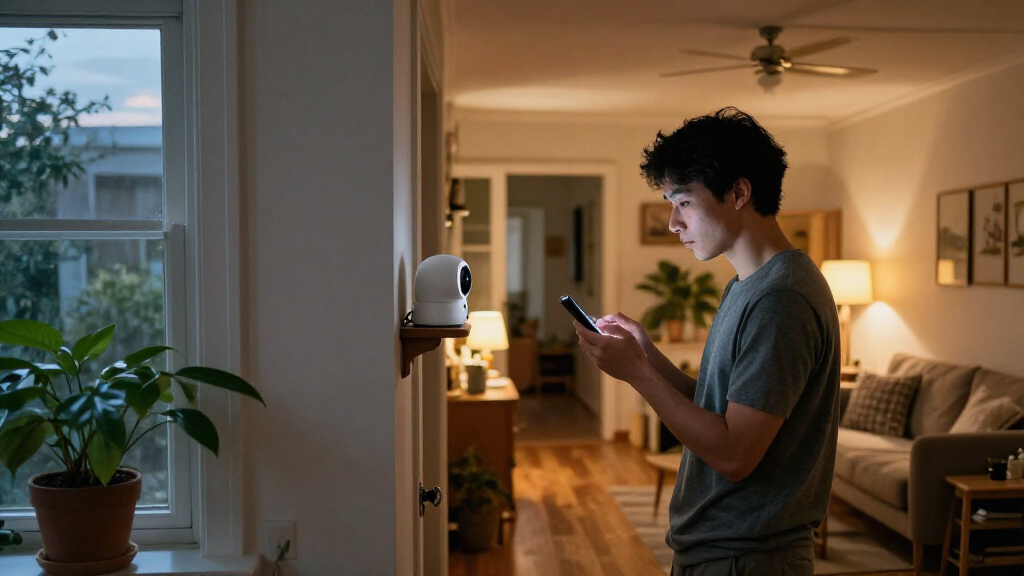
A smart home security camera records video and connects to a network so you can check a live view, review clips, or receive alerts remotely. Depending on the model, it can detect motion or people, save footage locally or in the cloud, and connect with other smart devices. For example, a camera might send a phone alert when someone approaches your porch, then let you open a clip while you’re at work.
That convenience depends on several pieces working together. The camera needs power, a clear view, and a reliable connection; the app needs account access; and recording needs a storage method. If your router sits at the far end of a brick house, a camera beside the garage may show a weak signal even when your phone works fine indoors. A live view can freeze, or alerts can arrive late.
Some newer models process features such as person detection on the device itself. This can reduce reliance on cloud analysis, though the feature’s availability and accuracy vary. AI descriptions and searchable event histories are also appearing, but they may require a subscription and can misread what they see. A person carrying a large box, for instance, might be described incorrectly if the camera catches only a brief, shadowy view.
Treat the camera as one part of a home security setup, not as a guarantee that every event will be captured. Before you buy, decide what you want to observe: a front entrance, a shared hallway, or the driveway. That choice sets the requirements for field of view, night performance, storage, and placement.
Products Worth Considering

Dyson V15 Detect Cordless Vacuum

Dreame L40 Ultra Gen 2 Robot Vacuum and Mop

Bose Smart Dolby Atmos Soundbar, All-in-One Soundbar for TV, A.I. Dialogue Mode, Voice Control and Amazon Alexa Built-in, Supports Bluetooth
As an affiliate, we earn on qualifying purchases.
Pick Indoor or Outdoor Cameras for the Right View
Choose indoor cameras for rooms and covered spaces; choose outdoor models for exposed areas that face rain, temperature swings, glare, and longer viewing distances. The right choice follows the location, not simply the camera’s advertised feature count. A small indoor camera on a bookshelf may suit a living room, while the same device could struggle through a winter on an uncovered porch.
| Feature | Indoor camera | Outdoor camera |
|---|---|---|
| Typical location | Living room, entry hall, or garage interior | Porch, driveway, or yard |
| Placement needs | Power outlet, privacy controls, view angle | Weather resistance, temperature range, secure mounting |
| Night view | Useful in a dark room; watch for reflections | Must cover greater distances and changing outdoor light |
| Common tradeoff | May capture household activity | Needs a dependable signal and may view neighboring areas |
Imagine a renter who wants to check whether a package arrived. A doorbell camera might cover the doorstep well, but a wide-angle driveway view could also capture a neighbor’s windows. Aim the lens at the approach and package area, then use activity zones to limit alerts from passing traffic. A camera pointed through glass can work during the day, yet reflections and infrared light bouncing off the pane often spoil the night image.
A wider field of view captures more area, but can make distant faces or number plates harder to identify. Night vision has similar tradeoffs: infrared usually creates monochrome footage, while visible lighting can produce color footage but may bother people or attract attention. Check the camera’s practical range, lighting conditions, and weather rating for the exact spot you plan to monitor.
Match Power and Wi-Fi to How You’ll Use the Camera
Choose power and connectivity based on how often you need recording and how easy the installation spot is to reach. Wired cameras usually offer steady power, while battery models give you more placement freedom but need recharging. Some battery cameras support solar panels. A wired camera near a home office may be easy to keep running, but a battery model can be more practical on a detached shed.
- Check power at the mounting point. Identify a nearby outlet or existing suitable wiring, and note whether charging a battery would require a ladder.
- Check the network where the camera will sit. Test the Wi-Fi signal at the porch or garage, not just beside the router. Walls, distance, and other devices can weaken it.
- Choose the recording pattern. Event clips save power on many battery models; some wired or network video recorder setups support continuous recording.
- Plan for outages. Find out whether footage saves locally without internet and whether battery backup or a different power source can keep the camera running.
Say you want a driveway camera that catches a car arriving after dark. A battery device may be easier to mount, but frequent triggers can drain its charge, and event-only recording may miss the seconds before the alert. A wired model might record more consistently, though running cable can make installation more involved.
For new electrical work or changes to fixed wiring, use a licensed professional and follow applicable codes and permit rules. Turn off power before work on an existing circuit, verify that it is off, and use appropriate PPE; camera installation is not a reason to take shortcuts with household wiring. Even a well-powered camera can falter when the network drops, so choose a location where the connection reaches reliably.
Compare Storage Costs Before You Rely on Alerts
Storage determines what you can review later, how long footage stays available, and whether you pay an ongoing fee. Cameras may save clips to a memory card, a network video recorder, or cloud storage; some offer only limited event history without a subscription. A live view does not tell you how many days of recordings you can revisit, so check retention and overwrite rules before buying.
Picture a delivery arriving on Tuesday while you’re away, followed by a question from a neighbor on Saturday. If the camera overwrites clips after three days, the footage may already be gone. Continuous recording can use more storage than motion-triggered clips, while resolution, compression, and activity levels also affect how much space you need. A busy pavement can generate far more events than a quiet back garden.
Subscriptions sometimes unlock longer history, advanced detection, or bundled camera features. Local storage can reduce recurring fees and may preserve recordings during some internet outages, but it does not automatically provide remote viewing when the connection is down. Check whether the device needs a hub or recorder, and whether a damaged or stolen camera could take its stored card with it.
Compare the total cost over the period you expect to own the camera: device, storage plan, accessories, and replacement batteries. For example, a cheaper camera with a monthly plan may cost more over several years than a model with local storage. The least expensive option is useful only if its retention period and recording mode match how you expect to use the footage.
Reduce False Alerts Without Missing the Useful Ones
Detection settings and camera position decide whether alerts help you or turn your phone into a chime for every passing leaf. Basic motion detection reacts to movement; some cameras can distinguish people, vehicles, or animals. That distinction can make alerts more useful, but it is not perfect. A shadow crossing the porch may trigger a motion alert, while a person far from the lens may go unnoticed.
Start by pointing the camera at the route you care about, such as the walk from the gate to the front door. Then set an activity zone around that path, leaving out a busy street or swaying tree. If a camera keeps warning you about cars on the road, narrowing its zone can help; if it misses visitors who approach from the side, widen or reposition the view instead.
Test alerts at different times of day. Morning glare, porch lights, rain, and infrared reflections can all change how the image looks. For instance, a camera that identifies a visitor reliably at noon may send confusing alerts at dusk when headlights wash across the frame. Keep the lens clean and review a few recorded clips before trusting a setting.
Advanced features, including person alerts and AI-based event descriptions, vary in accuracy and may depend on cloud processing or a paid plan. Treat a notification as a prompt to check the footage, not proof of what happened. Good detection is like a helpful doorman: it can point you toward activity, but it cannot see around every corner or understand every scene.
Protect Household Privacy and Your Camera Account
Privacy starts with where the lens points and who can open the account. Cameras may capture household members, visitors, neighbors, or parts of public spaces. Aim them at entrances and shared outdoor areas where practical, and avoid private rooms such as bedrooms and bathrooms. An indoor camera with a physical lens cover or privacy shutter gives you a visible way to block the view when you’re home.
Account security matters because a connected camera can expose more than its owner intended. Use a unique, strong password, turn on multi-factor authentication when available, install software updates, and review which phones or household members have access. If you share a feed with a partner or house sitter, check whether their role can also download clips or change settings. Removing old users after a move or a change in household routines helps keep access current.
Read the maker’s information about encryption, cloud storage, data retention, and account sharing. A camera may save footage in a way that supports easy remote access, but that convenience brings questions about who holds the recordings and how long they remain. Some newer on-device processing features can reduce cloud reliance, though it varies by model and does not make every data-handling concern disappear.
Local laws and expectations about recording vary by location, especially when audio or neighboring property is involved. Set up cameras with care, limit the view to what you need, and check relevant rules for your area. A clear view of your own front step can help you check a delivery; a lens pointed into someone else’s window crosses a very different line.
Use This Short Checklist to Choose a Camera
The best camera is the one that covers the right place and keeps useful footage available within your budget. Compare the whole setup instead of sorting products by resolution alone. A camera’s lens, lighting, signal, recording mode, and storage plan all shape what you’ll see when you open the app.
- Name the job. Decide whether you want to watch a doorway, check on a garage, or see who enters a shared outdoor area. One camera rarely covers every angle well.
- Pick indoor or outdoor hardware. For outdoor placement, check weather resistance, temperature range, night performance, and mounting options.
- Set power expectations. Choose wired power for steady operation where suitable, or a battery model if easier placement matters more and recharging is manageable.
- Test the view and signal. Check whether faces and activity are visible from the planned angle and whether Wi-Fi reaches that point.
- Read storage and platform details. Confirm clip retention, continuous recording support, subscription requirements, and which features work with your smart-home platform.
- Review privacy controls. Look for account protections, user permissions, privacy shutters, and clear data-retention information.
For example, a family choosing a camera for a front porch might prioritize reliable Wi-Fi, a useful night view, and a week of recorded clips. Someone renting an apartment might give more weight to a removable mount and a physical indoor privacy cover. Matter or voice-assistant support can help with integration, but compatibility does not guarantee that every camera feature will work through every platform.
Prices and features change, so judge claims against the product details you can verify: power method, storage limits, subscription terms, weather rating, and supported integrations. A sharp picture is welcome, but it cannot make up for a dead battery, a blocked view, or clips that disappear before you need them.
Frequently Asked Questions
Do smart security cameras work without Wi-Fi?
Some cameras can record to local storage without an internet connection, if they are designed for it. Remote viewing, cloud storage, and phone alerts usually need a working connection, so check the model’s outage behavior before you depend on it.
Do I need a subscription to use a security camera?
Not always. Some cameras provide live viewing or local recording without a paid plan, while cloud history, longer retention, and advanced detection may require a subscription. Compare the ongoing cost with the storage features you need.
Can a security camera record continuously?
Some wired cameras and network video recorder setups support continuous recording. Many battery-powered cameras favor event clips to conserve power, so check the recording modes before you buy.
How accurate are person and package alerts?
They can be more useful than basic motion alerts, but false alerts and missed events still happen. Placement, distance, lighting, and settings affect results; test the camera with real arrivals at different times of day.
Will a camera work through a window?
It may provide a usable view in daylight, but reflections can obscure the image. Infrared night vision can bounce off the glass, creating glare, so an indoor camera behind a window may perform poorly after dark.
How can I make my smart camera account more secure?
Use a unique, strong password, enable multi-factor authentication when available, and keep the camera’s software updated. Review shared users and remove access that household members or former occupants no longer need.
Conclusion
Choose a camera by starting with the view you need, then check its power, network, recording, and privacy limits. A camera that reliably captures your front step and keeps clips long enough to review will usually serve you better than one with impressive specifications aimed at the wrong place.
Before you mount it, stand where the lens will go and look at what it can see. The best security view is clear at the doorstep and quiet at the neighbor’s window.